
MySQL cloud server provides the user with the ability to quickly and conveniently deploy a database for a website in a separate environment without having to manually configure the server for this.
Why it is convenient to store data using MySQL in the cloud and what does MySQL database serve for:
- Fault tolerance: if the website files and the database are on different servers, the database will remain operational even if the files are damaged.
- Ease of use: to host MySQL databases on a separate server, you do not need to set up a VPS/VDS from scratch.
- No CP restrictions, as in shared hosting: you choose how many resources to allocate to the MySQL cloud server.
We have developed a video tutorial that explains in a convenient format how to create and host MySQL cloud databases.
Creating a Cloud Database Server
To proceed to creating a cloud database, go to the “Cloud” section and click “Create” – “Database”. MySQL local DB server will start its work.
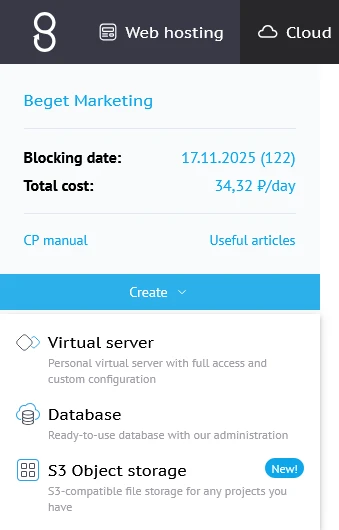
After clicking the “Create” button, a database server creation window will open, where you can configure the necessary parameters.
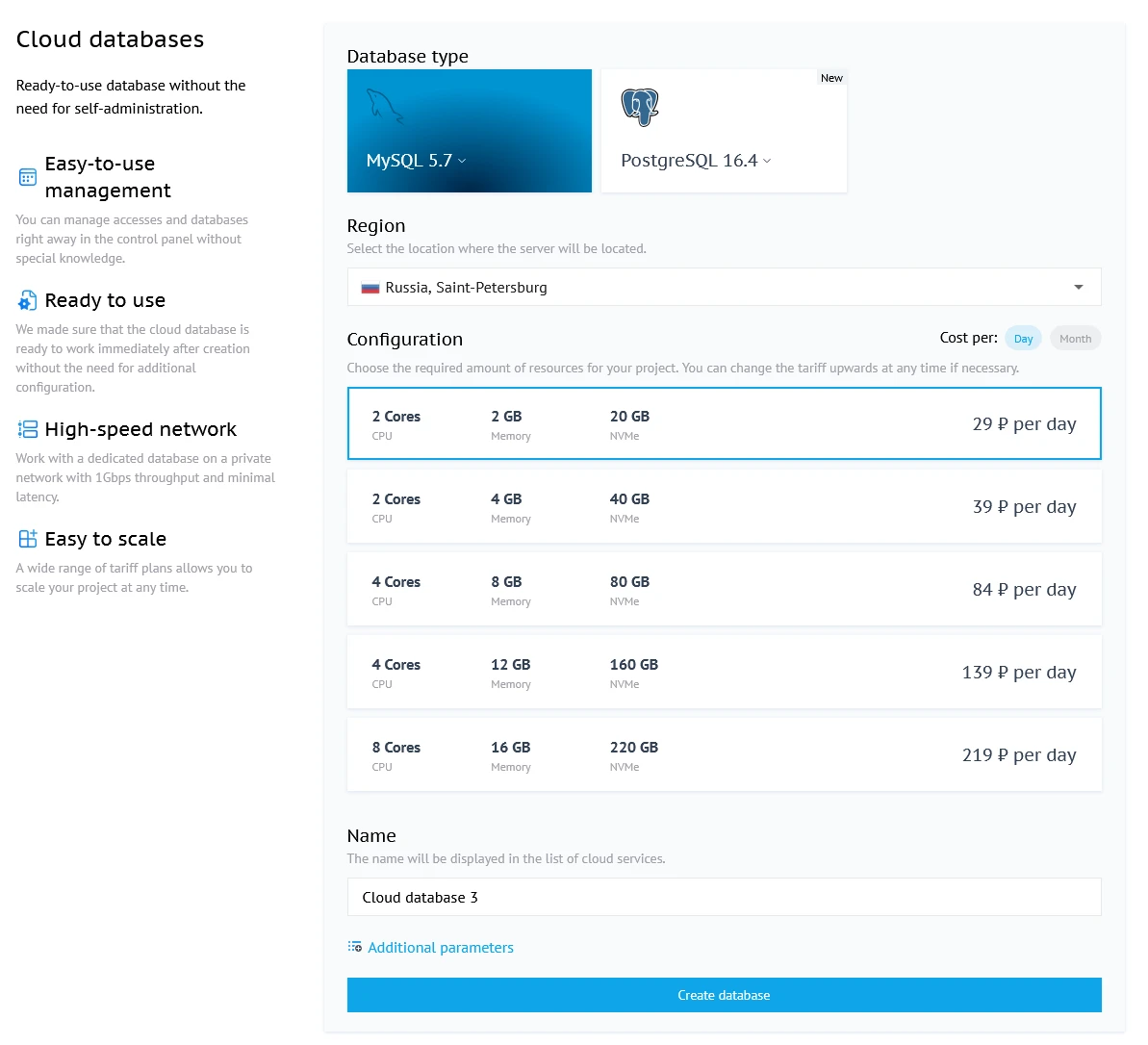
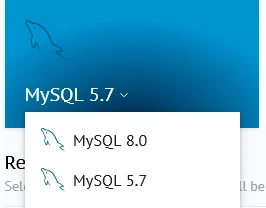
Selecting a MySQL Version
You can select a MySQL version from the drop-down list under the corresponding icon. The default version is 8.0, but version 5.7 is also available.
Database Parameters
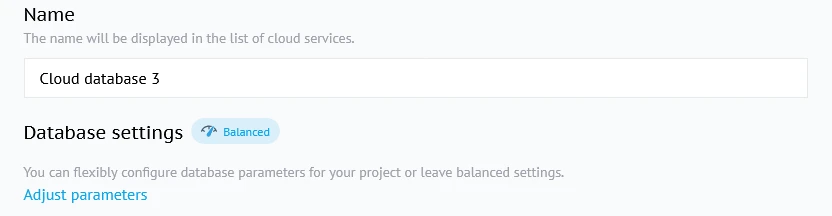
You can either use a ready-made set of parameters or configure the database yourself.
Balanced
To use the predefined settings, in the "Database Options" section, select "Balanced" from the drop-down list. This will set the following database parameters:
innodb_change_buffer_max_size = 25
max_connections = 100
max_user_connections = 0
max_allowed_packet = 67108864
transaction_isolation = READ-COMMITED
sql_mode = ""
Custom Parameters
To configure the database yourself, in the "Database Parameters" section, select "Custom Parameters" from the drop-down list. The "MySQL Options" window will open, where you can set the required value. For each of the parameters available for configuration, links to documentation with descriptions are available.
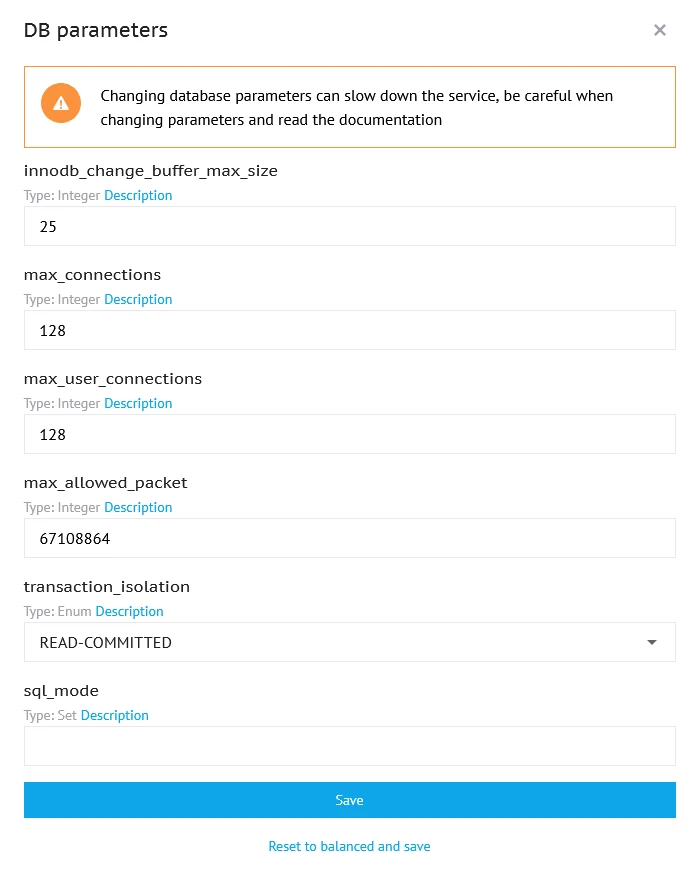
There is no ability to add new MySQL directives, you can only change the values of existing ones.
Tariff Selection
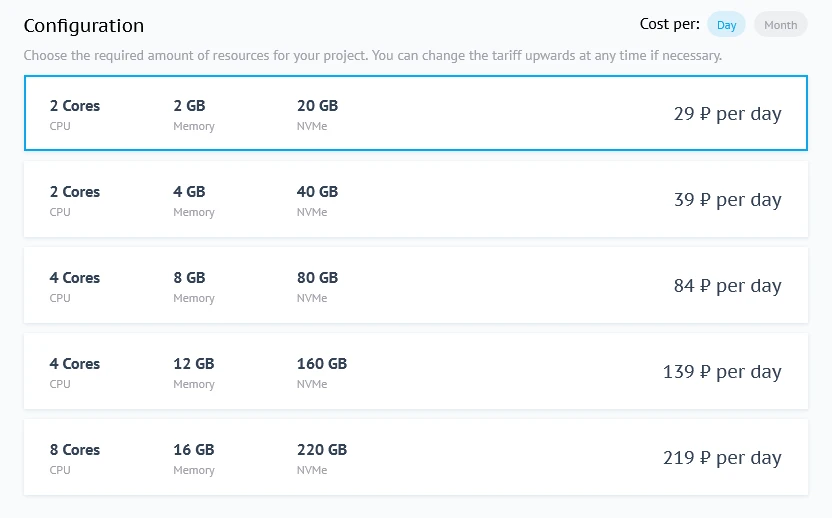
In the drop-down list in the "Tariff" section, you can select a configuration for the cloud server.
Cloud Server Name
In the "Name" section, you can set the server name that will be displayed in the list of servers on the left side of the Control Panel.
To change the server name after it has been created, follow these steps:
- Go to the server management menu by clicking on the server name in the list on the left;
- Click on the server name at the top of the menu;
- Enter the new server name in the "Rename server?" field;
- Enter a short description for the server in the "Edit description" field, or leave the field blank;
- Click the "Apply changes" button.

Additional Options
Below the "Name" section, there is an "Additional Options" button. Clicking on it will open the fields for setting up the first database on the server.
Database Name
By default, the first database on the server is named default-db. The database name may contain Latin letters (upper and lower case), numbers, and hyphens.
The database name will be displayed in the "Databases" section.
Password
The password to the database must contain from 6 to 30 characters and consist of Latin letters of different registers, as well as numbers or special characters. It can be either set manually or generated automatically – by clicking on the icon in the corresponding field, a 12-digit password will be generated.
The previously set password can be changed in the "Databases" section for each database user.
After setting all the parameters, click the "Create database" button. The server will appear in the list on the left with the "Creating" status. In a few minutes, it will switch to the "Working" status, and you will be able to use it.
Installing phpMyAdmin on your server will take some time. During the installation process, the following message will appear next to the server status:

The cloud server is automatically added to the account's private network, allowing it to interact with the VPS on the server without external connections. You can read more about the structure of private networks in our article “Private networks for VPS users”.
Connecting to a Database on a Cloud Server
Connecting via PhpMyAdmin
Method 1
- Go to the server management menu by clicking on the server name in the list on the left;
- Go to the "Databases" section;
- Opposite the required DB, click on the
icon;
- If necessary, enter the database data (in the
Usernamefield, enter the DB name) and click the "Forward" button.
Method 2
- Hover your mouse over the card with the server name in the list on the left;
- In the lower right corner of the card, click the "Go to database management" button that appears;
- Opposite the required DB, click on the
- If necessary, enter the database details (in the
Usernamefield, enter the DB name) and click the "Forward" button.
If you checked the box next to "Save password for phpMyAdmin" when creating the database, you will not need to perform step 4 in the first two methods.
Method 3
- Go to the server management menu by clicking on the server name in the list on the left;
- Click the
button opposite the server name;
- Enter the data from the database (in the "
Username" field you must enter the database name ); - Click the "Forward" button.
Connecting in Other Ways
Database connection parameters are located at the top of the server management menu:
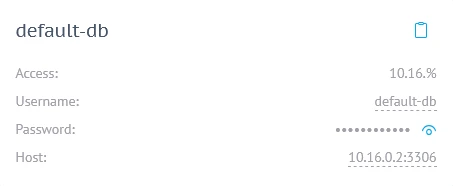
The database for which you need to display connection parameters can be selected in the "DB" drop-down list in the top line of the form.
If multiple accesses are created for a database, the value next to the word "Access" will turn into a drop-down list, and the host value in the connection parameters will change depending on the type of access (external or via a private network).
Sections for Working With a Cloud Server
Statistics
To go to this section, click on the server name in the list on the left and select the "Statistics" section in the server management menu.
Here you can find the following data about the cloud server:
- CPU power usage percentage;
- Average system load (load average);
- The amount of RAM consumed;
- Total data volume on NVMe disk;
- Disk access speed – read and write;
- The speed of transmission of incoming and outgoing traffic.
By default, statistics are displayed by hour. In the upper right corner of each chart, there is a drop-down list where you can select the display period.

Databases
In this section, you can:
- view a list of all databases on the server;
- add a new database. To do this, you need to enter the database name and password in the "Add database" form (you can either create the password yourself or generate it automatically);
- add new access to an existing database. To do this, click the
icon opposite the database name and fill in the fields in the window that appears.
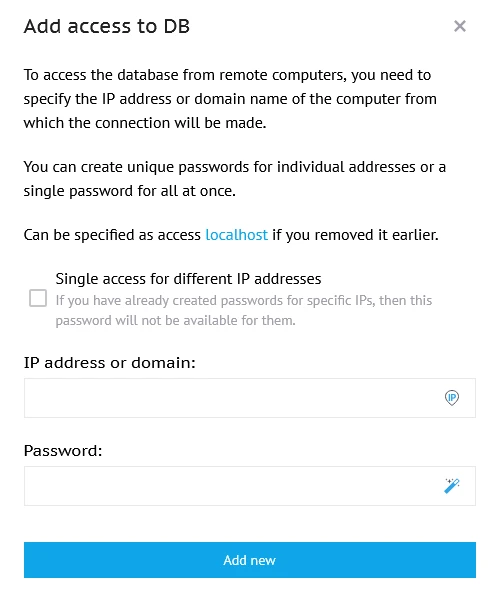
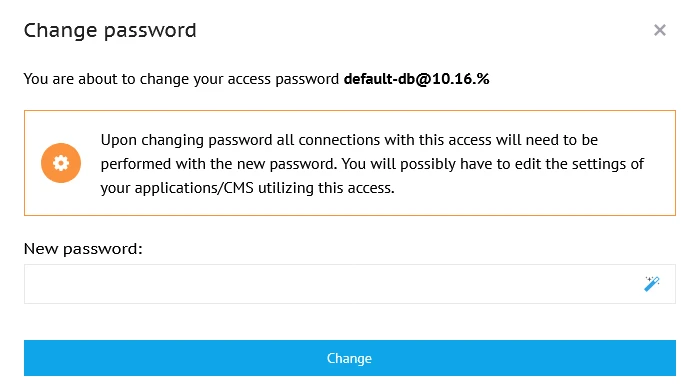
- change the password for each individual access. To do this, you need to click on the icon opposite the desired access and set a new password in the window that opens. If you do not need to save the password for phpMyAdmin, you can uncheck the corresponding item.
- go to phpMyAdmin for each database.
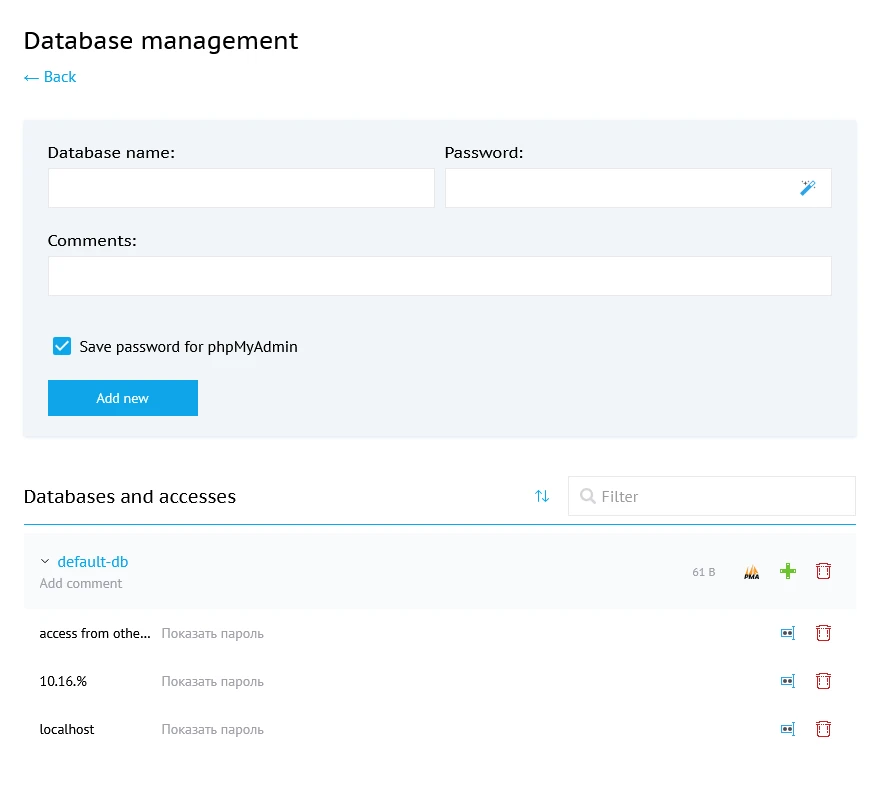
Ways to navigate to this section:
- move the mouse pointer over the card with the server name in the list on the left; in the lower right corner of the card, click the button "Go to database management" that appears;
- click on the server name in the list on the left and select the "Databases" section in the server management menu.
Server Configuration
To go to this section, hover your mouse over the card with the server name in the list on the left; in the lower right corner of the card, click the "Go to settings" button that appears.
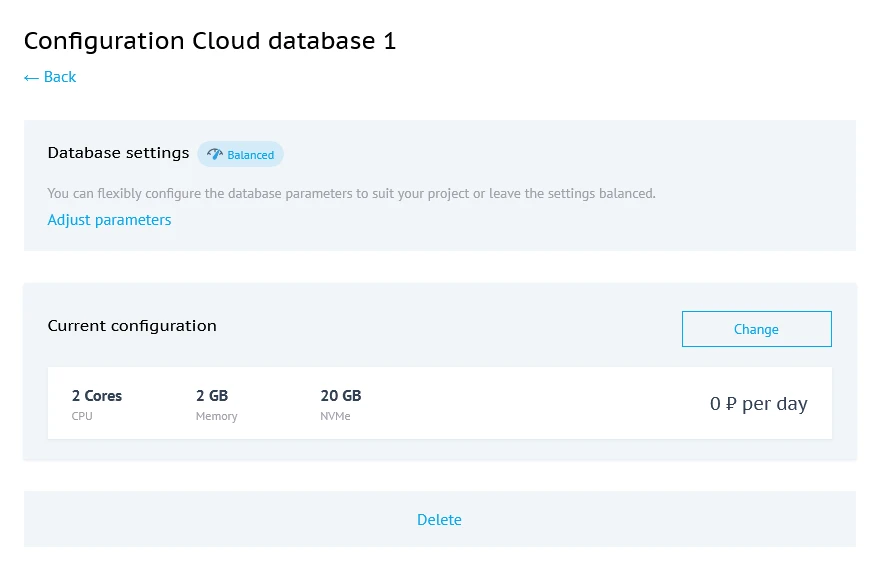
In this section you can:
- change the database parameters specified during creation, including replacing the "Balanced" setting with your own set of parameters and vice versa. Selecting a setting and editing parameters is similar to creating a new cloud database server;
- change the cloud server configuration. The configuration can only be changed upwards. To change the current configuration, click the "Change tariff" button above the line with the current configuration. After that, a drop-down list will appear under the current configuration for selecting a new one.
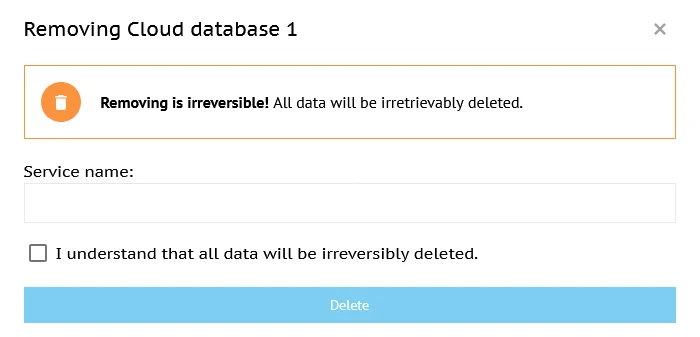
- delete a cloud server. To delete a server, click the "Delete" button at the bottom of the page. After this, you need to check the box "I understand that all data will be permanently deleted" and enter the name of the server to be deleted in the "Service name" field. After that, the "Delete" button in the window will become available.
If you have any questions, please write us a ticket from your account control panel (“Support” section), and if you want to discuss this article or our products with colleagues in the industry and Beget employees, we are waiting for you in our Telegram community.