
OpenCart is an open-source software and free e-commerce platform. Thanks to the rich built-in functionality and support for third-party plugins, with the OpenCart e-commerce platform you can create online stores of almost any size.
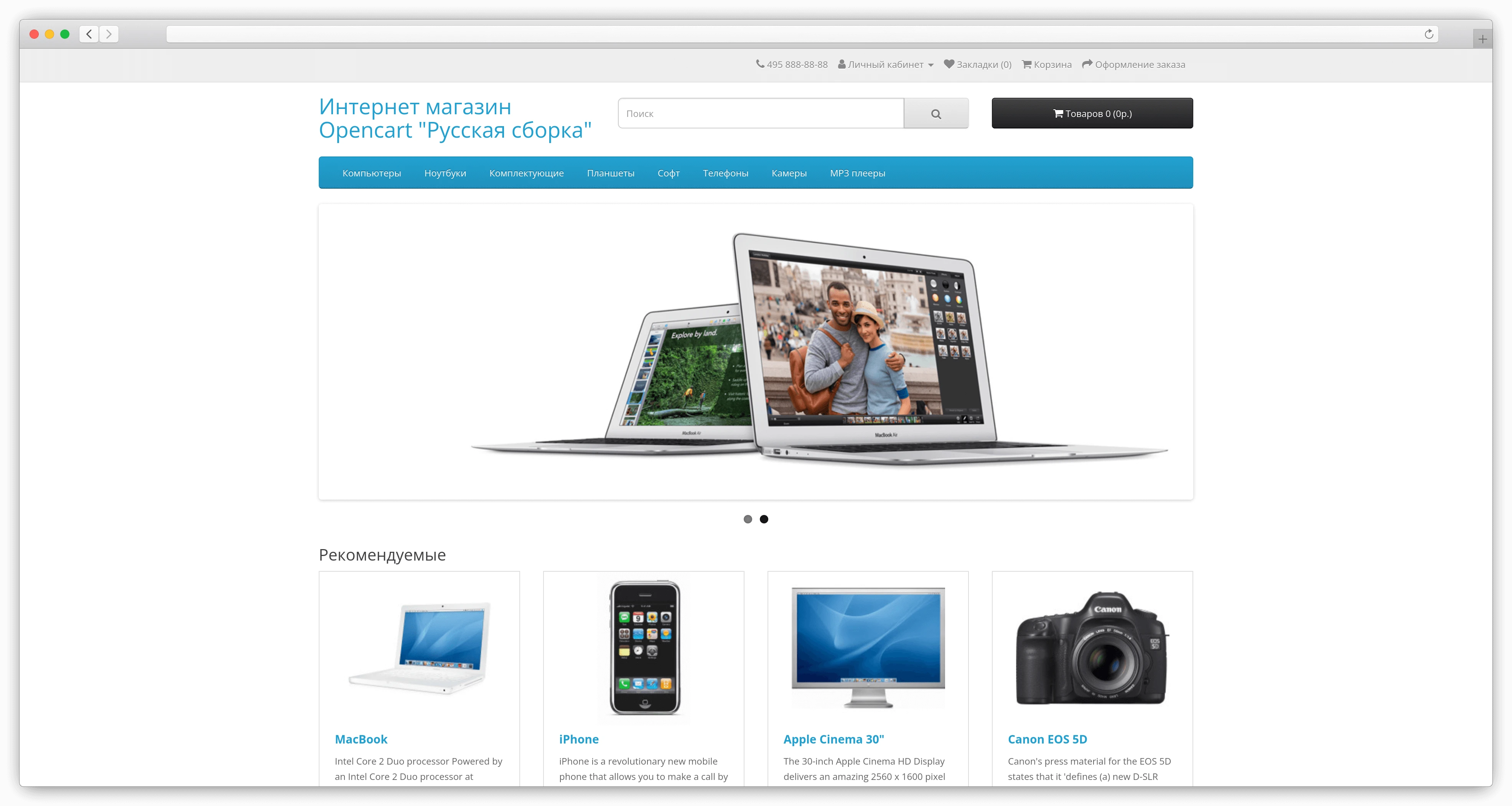
Beget VPS with pre-installed OpenCart is a Russified version with the autoconfigured domain name and SSL certificate. No manual setting is required. You can start working immediately after installation.
Installation package information
- Ubuntu 22.04
- Nginx
- Apache
- Postfix
- MySQL
- OpenCart with Russian language pack 4.1.0.0
- Certbot
Installing and using OpenCart
To install and deploy OpenCart from the VPS creation page, in addition to the standard parameters you will be asked to specify:
- The domain that will be used for your online store. You can specify either an existing domain name or register a new one. Also, you are available to use the free domain .beget.app. An SSL certificate will be issued and installed on the selected domain.
- Admin Login, which is used to enter the OpenCart control panel.
- Admin Password.
- Admin E-mail.
There’s no need for manual OpenCart customization. After the virtual server is created, the application will be deployed and an SSL certificate will be issued. This usually takes 5–7 minutes. You will be notified after the OpenCart installation process is completed.
Using OpenCart
After installing OpenCart, your online store will be available under the domain name of your choice. The OpenCart admin panel will be available at https://my-domain.beget.app/admin (where my-domain.beget.app is your domain name).
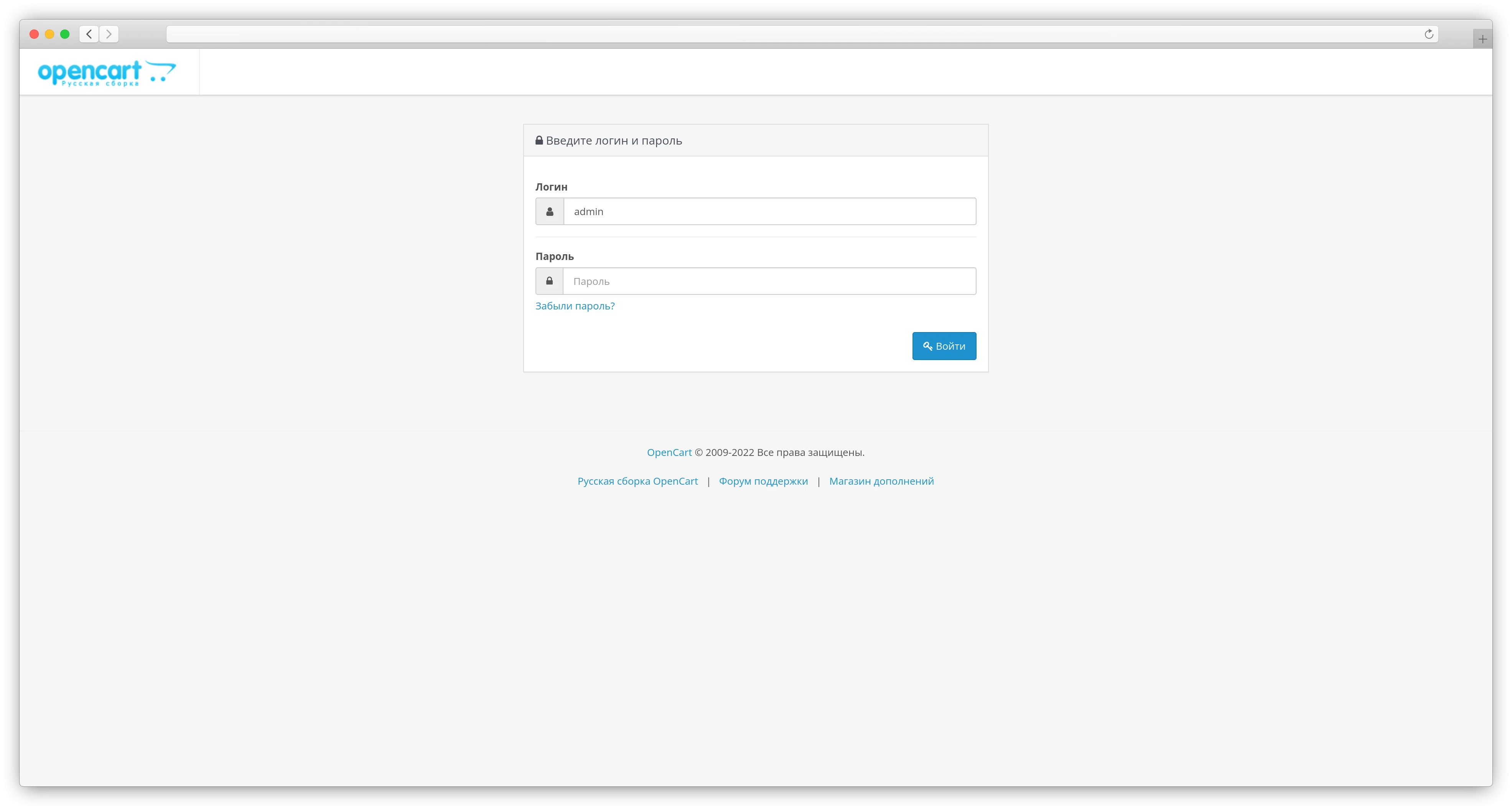
To log in to the admin panel, use the administrator login and password that you specified when creating the server. They are also available in your control panel of the virtual server in the window of information about the installed software.
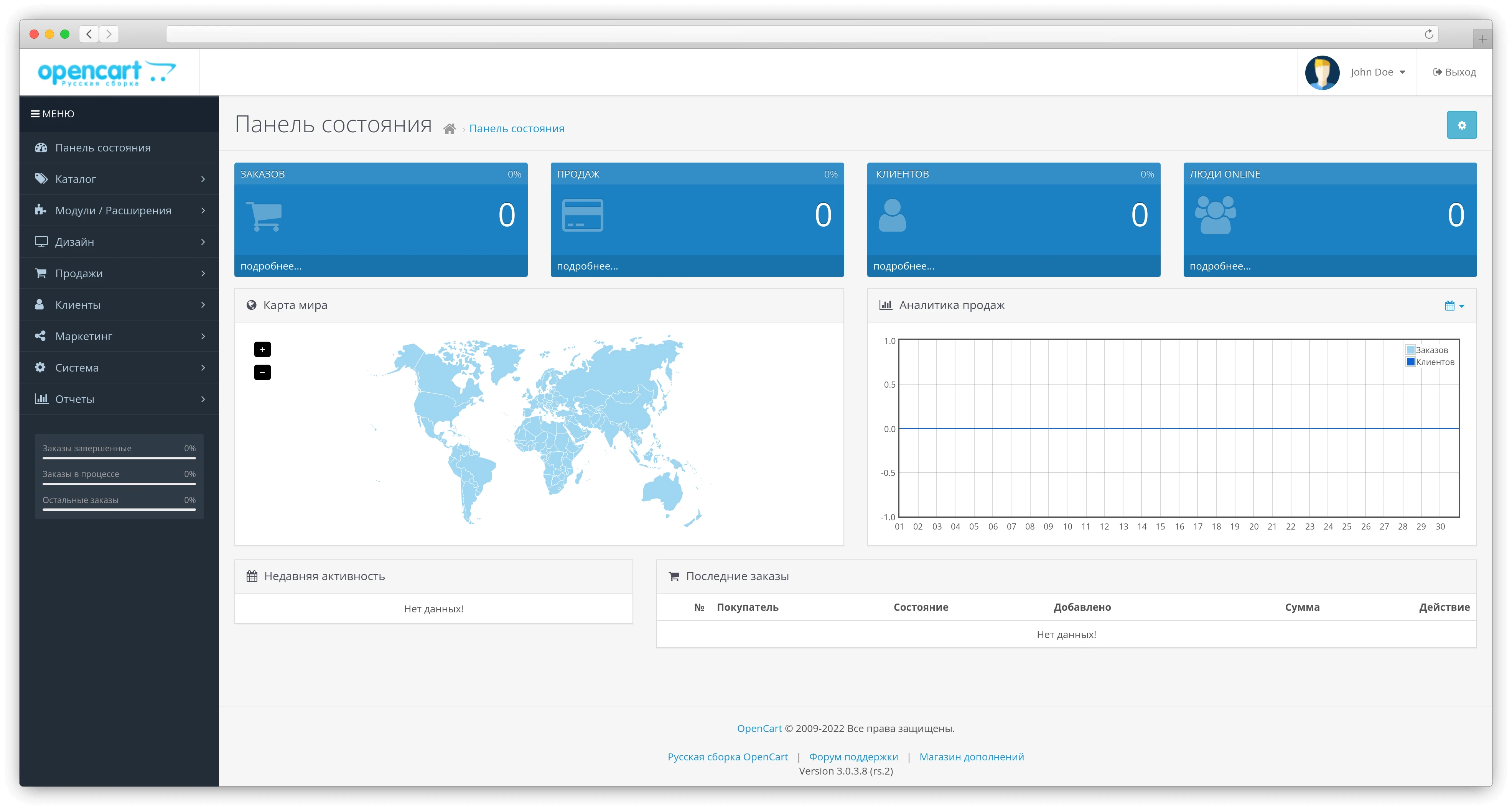
Your OpenCart is ready to work. We wish you a successful online store development!
FAQ
The files of your online store are located in the directory /var/www/opencart.
- Nginx configuration:
/etc/nginx/sites-enabled/opencart - Apache configuration:
/etc/apache2/sites-enabled/opencart.conf
After making the changes, don't forget to restart the web server.
Use the commands to restart the webserver:
- Nginx:
service nginx restart - Apache:
service apache2 restart